
How to install custom indicators in MetaTrader 4
Reading time: 9 minutes
MetaTrader 4 (MT4) comes with around 30 built-in indicators, including Moving Averages, Relative Strength Index (RSI) and Bollinger Bands. But what if you want to use a tool that is not included by default? That's where custom indicators come in. MT4 custom indicators range from simple session markers to complex multi-timeframe dashboards.
Learning how to install custom indicators in MetaTrader 4 can become simpler once you know where to place the files and how to load them onto a chart.
Key Points
- To install custom indicators MT4 accepts, copy the file into the MQL4 > Indicators folder and restart the platform.
- Compiled .ex4 files work straight away, while .mq4 source files need compiling in MetaEditor first.
- Download MT4 custom indicators only from trusted sources and test them on a demo account before live use.
What are MT4 custom indicators?
These are tools built by developers and traders using MetaQuotes Language 4 (MQL4). They process market data and display information on a trading chart. Some highlight trends or possible reversals, while others identify price patterns, support and resistance levels, or potential entry and exit signals.
Unlike Expert Advisors (EAs), custom indicators are designed primarily for market analysis. An indicator may display a possible trading signal, for example, but it does not automatically place an order simply because that signal appears. Automated trading requires a separate mechanism, such as an EA.
Traders can obtain indicators from the MQL4 community, the MetaTrader Market or independent developers. Some are free, while others require payment.
Before downloading anything, traders usually check that the indicator is compatible with MT4. MetaTrader 4 and MetaTrader 5 use different programming environments and file formats. An indicator designed for MT5 is unlikely to work in MT4 simply because you place it in the correct folder.
How to add custom indicators in MT4
The following steps explain how to install an indicator manually on the desktop version of MT4. Menu names may vary slightly depending on your operating system or platform build.
Step 1: Download the indicator files
First, find the indicator you want to use and download its files from a source you trust. Custom indicators commonly use one of two file extensions:
- .ex4: The compiled file that MT4 can run.
- .mq4: The source-code file written in MQL4, which can be opened and compiled in MetaEditor.
Some downloads contain both files. Others include only the compiled version. If the download arrives as a ZIP archive, extract its contents before continuing. Keep the original filenames and check the developer’s installation instructions. An indicator may also come with supporting files, such as libraries or preset settings, which need to be installed separately.
Avoid downloading executable files from unfamiliar websites. A custom indicator may request access to external libraries or web services, so understand what it does before allowing those functions.
Step 2: Open the MT4 data folder
Open MT4 and find the top menu bar. Here, click File and select Open Data Folder. Wait for File Explorer to open the platform's working directory.
This is the easiest way to locate the correct folder. Manually searching through your computer's Program Files directory can be confusing, particularly if you have installed MT4 through more than one broker. The data folder belongs to the specific MT4 terminal you opened. If you use multiple installations, make sure you are working with the one where you want the indicator to appear.
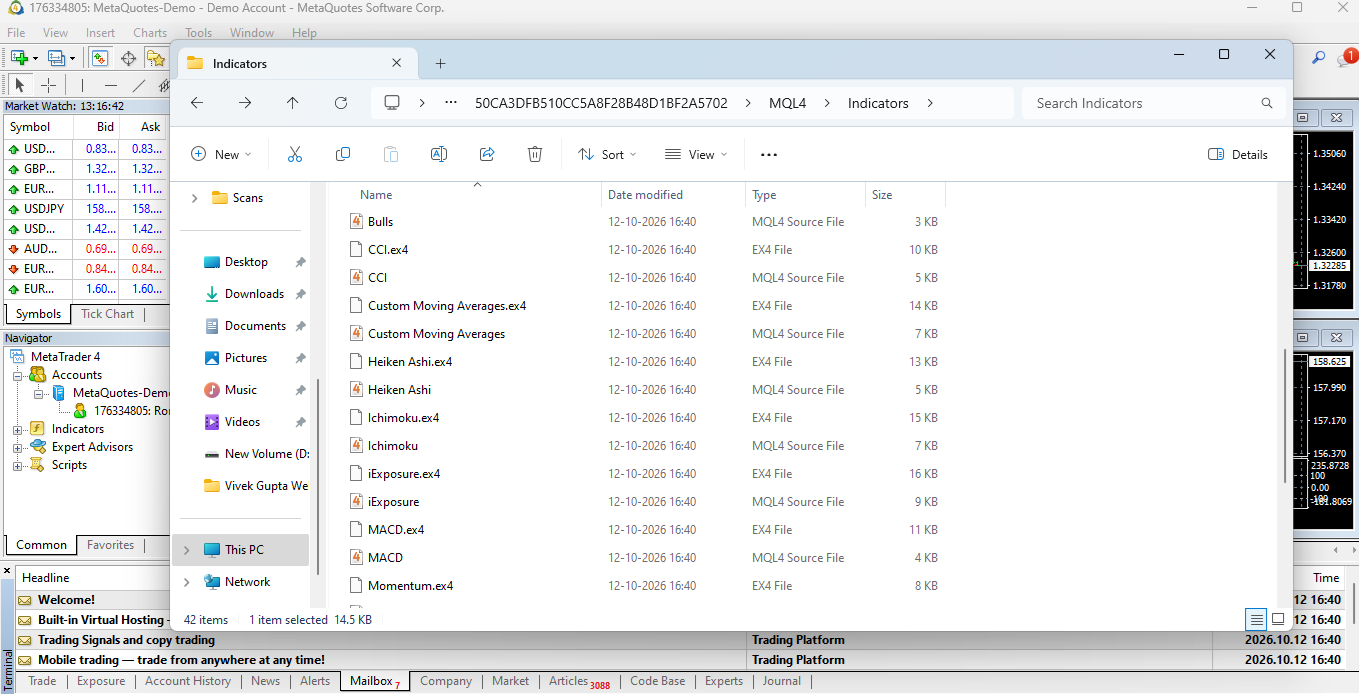
MetaTrader 4 Data Folder
Step 3: Find the indicators folder
Inside the data folder, open the following directories in order:
MQL4 → Indicators
This is the standard location for MT4 custom indicator files.
Copy the downloaded .ex4 file into the Indicators folder. If the developer supplied an .mq4 source file, you can copy that across as well.
Some indicators come with their own subfolders. If the developer’s instructions specify a particular folder structure, follow it rather than moving every file into the main Indicators directory.
Keep supporting files in their intended locations. For example, a package may include a library that belongs in the Libraries folder rather than Indicators. Putting files in the wrong directory can prevent the indicator from loading.
Once the files are in place, close File Explorer. You do not need to change any Windows system settings or move the entire MT4 installation.
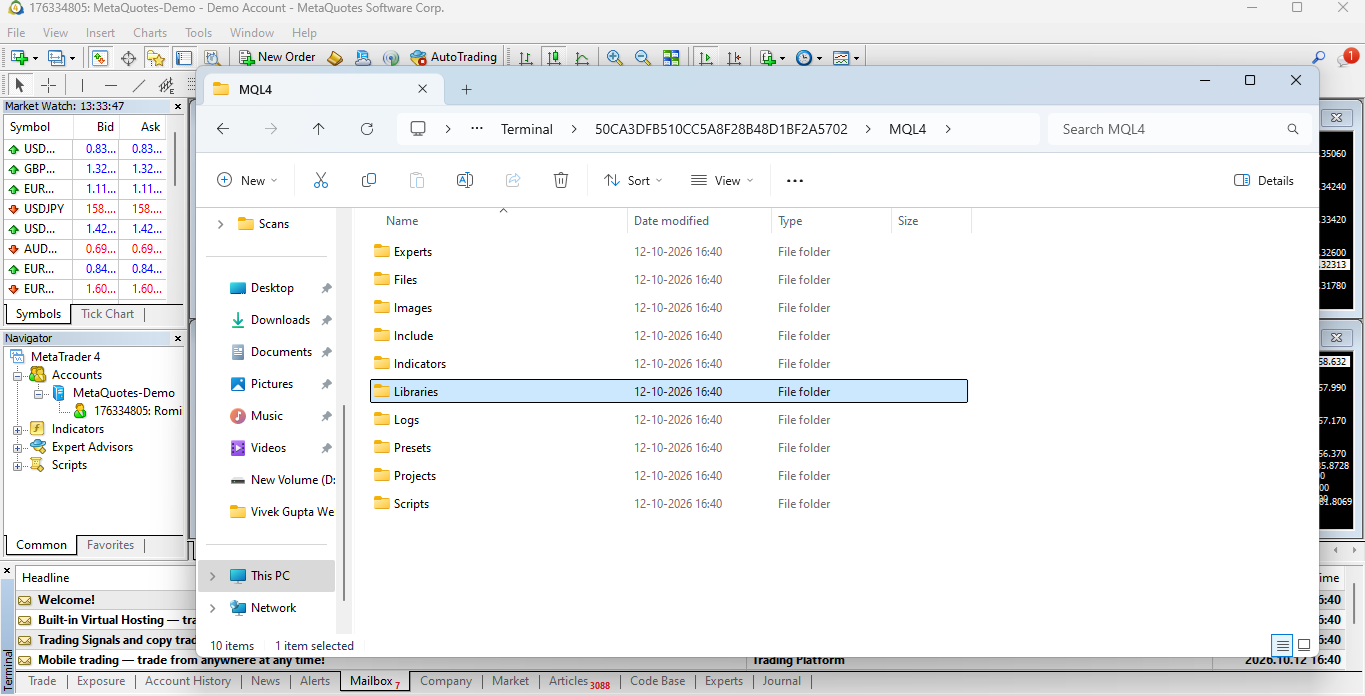
MetaTrader 4 Libraries Folder
Step 4: Refresh the Navigator window
Return to MT4 and open the Navigator panel if it is not already visible. You can usually display it by selecting View → Navigator or pressing Ctrl+N.
Expand the Indicators section. Your newly installed indicator should appear in the list. If it does not, right-click inside the Navigator panel and select Refresh. This prompts MT4 to update the list of available indicators.
Still cannot see it? Check that the file is in the correct data folder and that you have not accidentally copied a file intended for MT5. If the indicator remains missing, restart MT4 and check again.
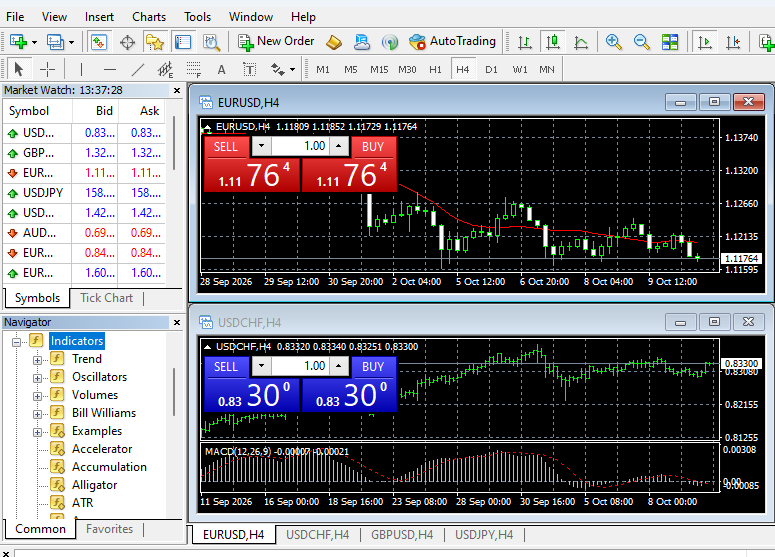
MetaTrader 4 Navigator Window
Step 5: Add the custom indicator to a chart
Open the chart you want to analyse. In the Navigator panel, locate the indicator and either double-click it or drag it onto the chart.
MT4 will open a settings window. Depending on the indicator, this may contain several tabs, including Common, Inputs, Colours and Visualisation. Review the settings before clicking OK. The indicator should then calculate its values and display them on the chart.
Some indicators draw directly over price candles. Others, such as many momentum oscillators, appear in a separate window below the main chart. Both are normal.
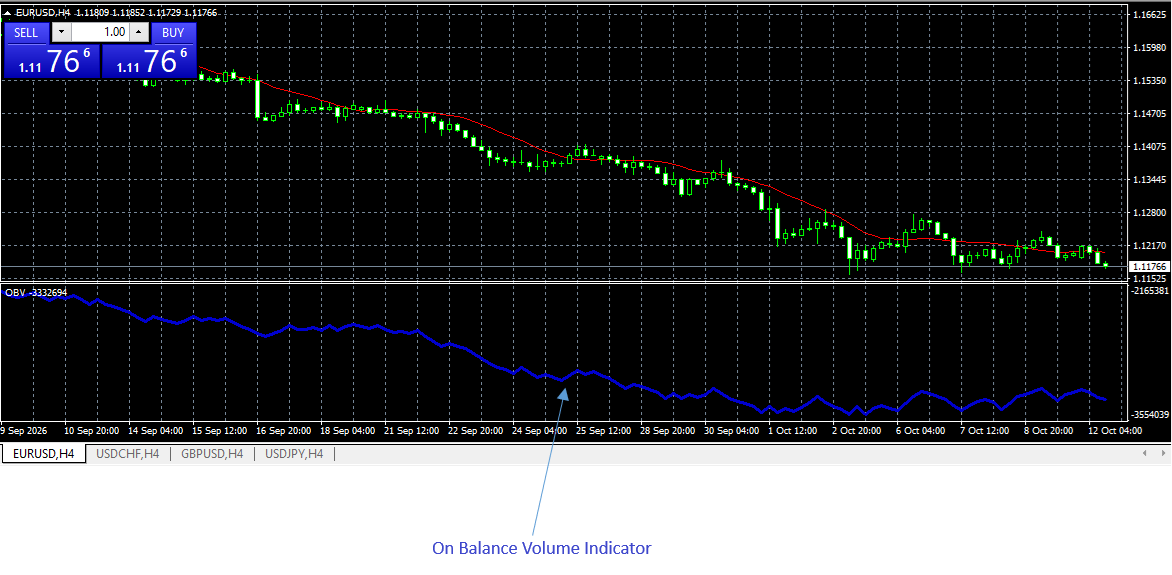
Add Custom Indicator On MetaTrader 4
How to configure your indicator settings
Installing an indicator is only part of the process. You may also need to adjust its parameters to suit the market, timeframe or strategy you are testing.
The Inputs tab is usually the best place to start. Here, you can change values such as calculation periods, thresholds and alert settings, depending on the indicator. For example, a moving-average indicator may allow you to change the number of periods used in its calculation. A momentum indicator, like the Stochastic Oscillator, may let you adjust its overbought and oversold levels. The available options depend on how the developer built the tool.
The Colours tab lets you change the appearance of indicator lines, including their colours, thickness and style. The Visualisation tab can restrict the indicator to selected timeframes.
Avoid changing several settings at once without understanding their purpose. Make one adjustment, observe the result and record the settings you use. This makes it easier to compare results and return to your original configuration.
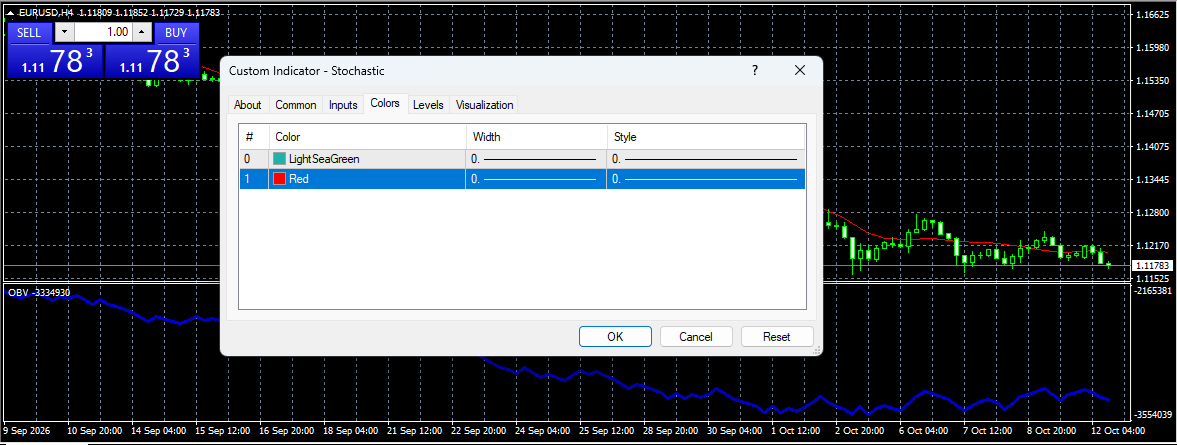
Configure Indicator Settings On MetaTrader 4
To remove an indicator from a chart, right-click the chart, choose Indicators List, select the tool and click Delete. To remove it from MT4 entirely, delete the file from the Indicators folder.
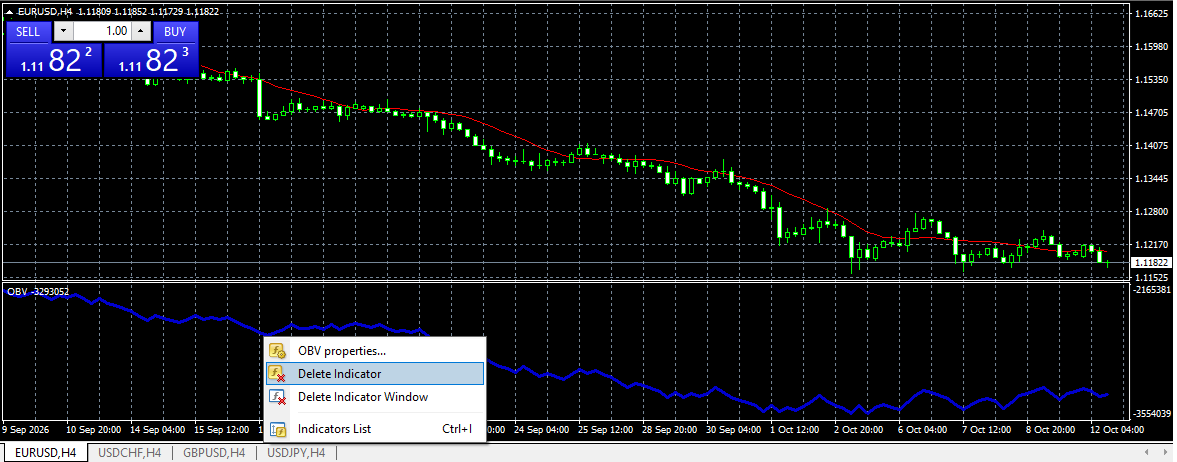
Delete Indicator From Chart On MetaTrader 4
How to fix common installation problems
Even a careful install can fail. Here are the common causes:
Indicator missing from the Navigator
Check the folder first. The file must sit in MQL4 > Indicators, not Experts or Scripts. Then refresh the Navigator or restart MT4.
File is for the wrong platform
MT5 indicators use .ex5 and .mq5 files. MT4 cannot read them. Always confirm the indicator was built for MT4.
MetaEditor shows compile errors
The code may be written for a different build, or it may depend on missing include files. Ask the developer for an updated version.
Indicator loads but draws nothing
Open the Inputs tab and check the parameters. Some tools also need enough historical data, so scroll the chart back or increase the number of bars shown.
A feature fails to run
Some indicators call external libraries and need ‘Allow DLL imports’ enabled in the Common tab. Enable it only for providers you trust.
Test your indicator before trading
After installing custom indicators in MT4, experienced traders usually practice with them on a demo account. They typically start by observing how the tool behaves on historical charts. They may also look at different market conditions, including trending, ranging and volatile periods. Does the indicator display what you expected? Does it repaint earlier signals? Are its alerts clear and timely?
However, remember that a technical tool can help organise market information, but it cannot predict every price move. This makes thorough analysis and risk management crucial.
Put your MT4 custom indicators to work
Knowing how to install custom indicators in MetaTrader 4 can give you more control over your charts and analysis. The process is simple once you know where to save the files, how to refresh Navigator and how to configure the settings.
FP Markets offers MT4 with customisable charts, technical indicators and access to the MQL4 community. Traders can also use its platform features to analyse different markets, with trading conditions that include tight spreads and fast execution. Explore the FP Markets MT4 platform to learn more about its charting tools and features.
Frequently asked questions (FAQs)
Save them in the MQL4 > Indicators folder. Open it through File > Open Data Folder, then restart MT4 or refresh the Navigator.
The file might be in the wrong folder, the Navigator has not refreshed, or the file was built for MT5. Move it to MQL4 > Indicators and restart the platform.
No. The mobile app offers built-in indicators only. Install custom indicators on the desktop platform instead.